How to Compare Flow Versions : Yumi Ibrahimzade
by: Yumi Ibrahimzade
blow post content copied from Salesforce Time
click here to view original post
**Summary of the Content:** Salesforce has introduced a new tool called the Flow Version Comparison Tool in its Winter ’26 release. This tool helps users compare different versions of Flows side by side, making it easier to spot changes, especially in complex Flows with many elements. Previously, tracking changes was challenging and often required manual reviews or third-party tools. **Key Features of the Flow Version Comparison Tool:** - **Side-by-Side Comparison:** Users can select two Flow versions to compare and view differences in a clear, tabular format. - **Summary of Changes:** The tool provides a summary of what has been added, updated, or removed, along with modified connectors. - **Detailed View:** Users can click "View Details" to get more information about specific changes. - **Sharing Results:** Comparison results can be easily shared by copying a URL. **Limitations:** - The tool currently does not support Screen Flows or the Transform element, but updates are expected in future releases. **Additional Context:** This new feature is particularly beneficial for teams working collaboratively on Salesforce Flows, as it streamlines the process of identifying changes and enhances overall productivity. **SEO Hashtags:** #Salesforce #FlowComparison #SalesforceWinter26 #FlowVersionTool #Collaboration #SalesforceUpdates #Productivity #TechTools
When multiple users collaborate on building and improving Flows in Salesforce, keeping track of changes between versions becomes a challenge. This is especially true for complex Flows with dozens of elements, where even small modifications can be difficult to spot. Until now, there was no standard way to compare Flow versions, making manual reviews both difficult and time consuming. As a result, teams often struggled to identify what had changed and sometimes relied on third party tools for clarity.
Well, those days are over. With the Winter ’26 release, Salesforce is introducing a powerful new Flow Comparison tool.
Flow Version Comparison Tool
Flow Version Comparison tool solves the problem by letting you compare two versions side by side and view the exact differences in a clear, tabular format. Here is how to use it.
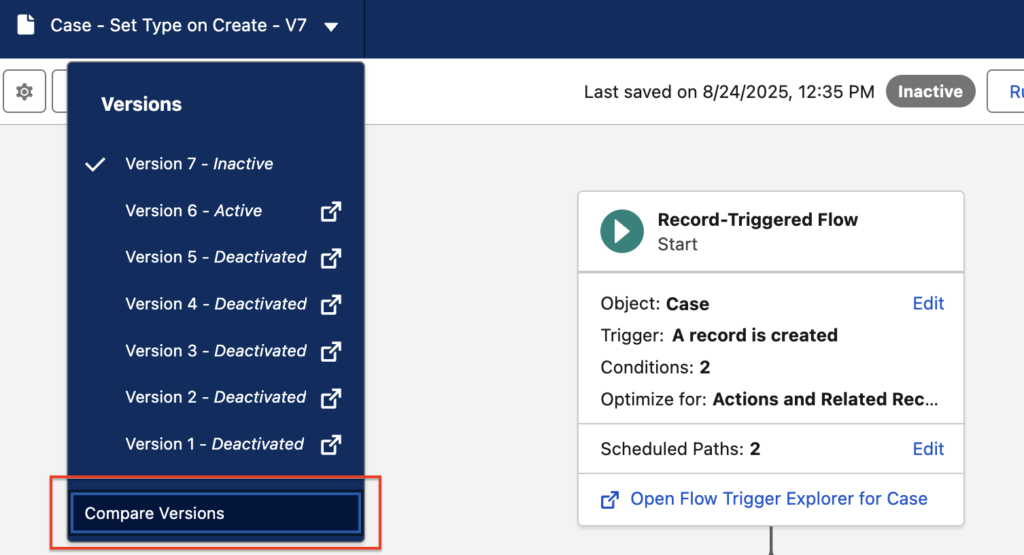
Open the Flow version that you want to compare. Then click "Compare Versions" from the version selector.
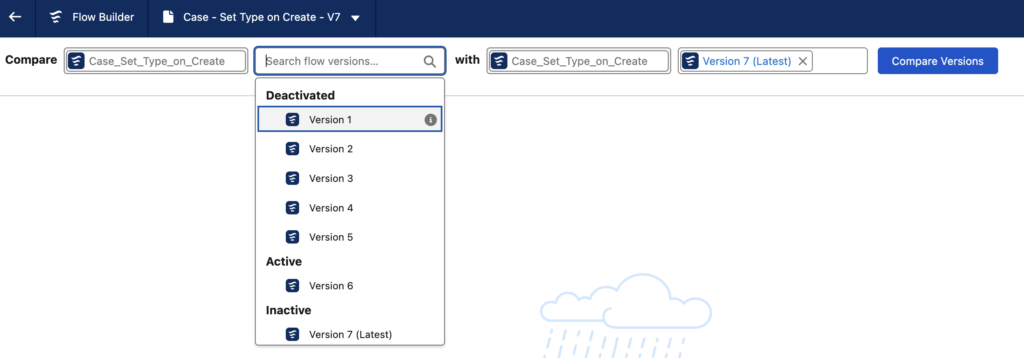
Then, choose the version you want to compare with and click "Compare Versions" button.
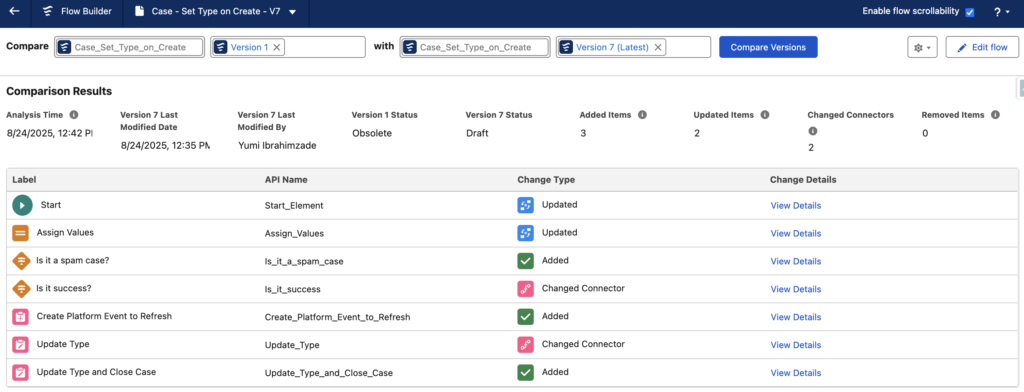
This will display the differences between Flow versions. You can view a summary of changes, including added, updated, or removed items, as well as modified connectors. Below the summary, you’ll find a table of the exact elements with differences. Click "View Details" to see more information about each change.
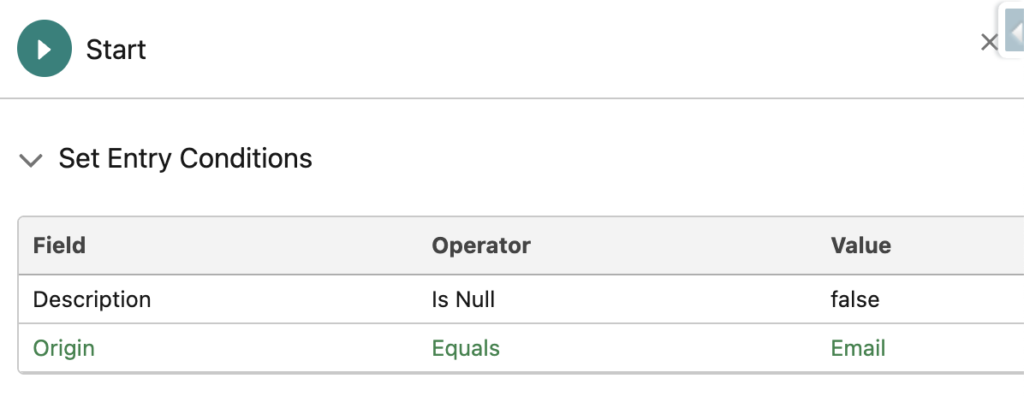
For example, here you can see that the user added a new entry condition to the start.
By default, Flow Comparison Tool shows the elements that have differences. However, you can decide to show all the elements.
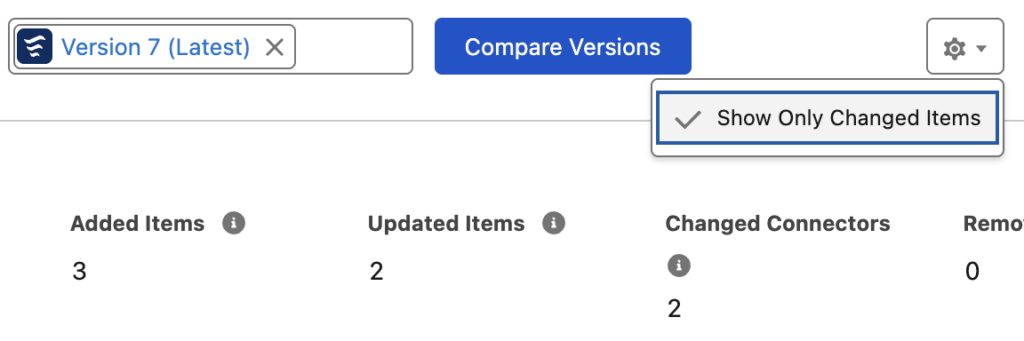
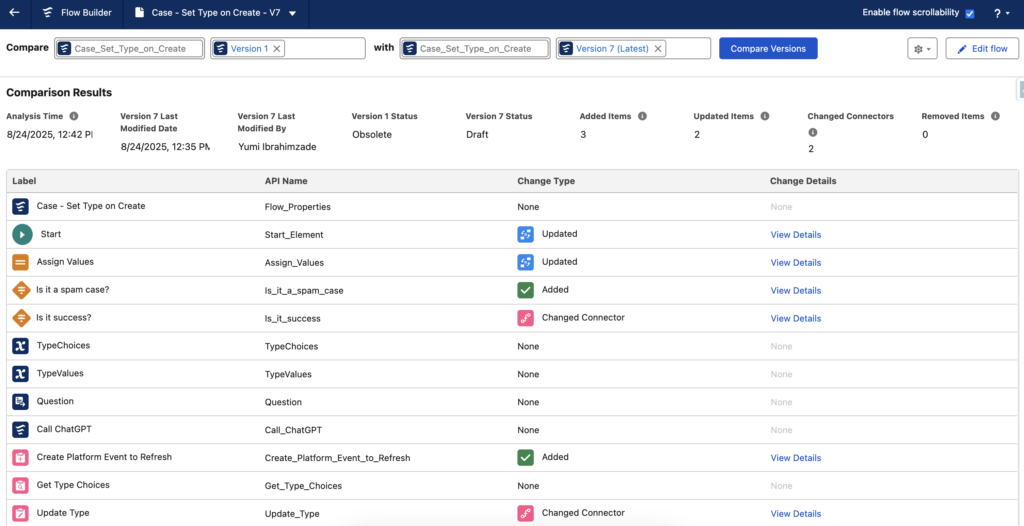
Here are all the steps from a different Flow.
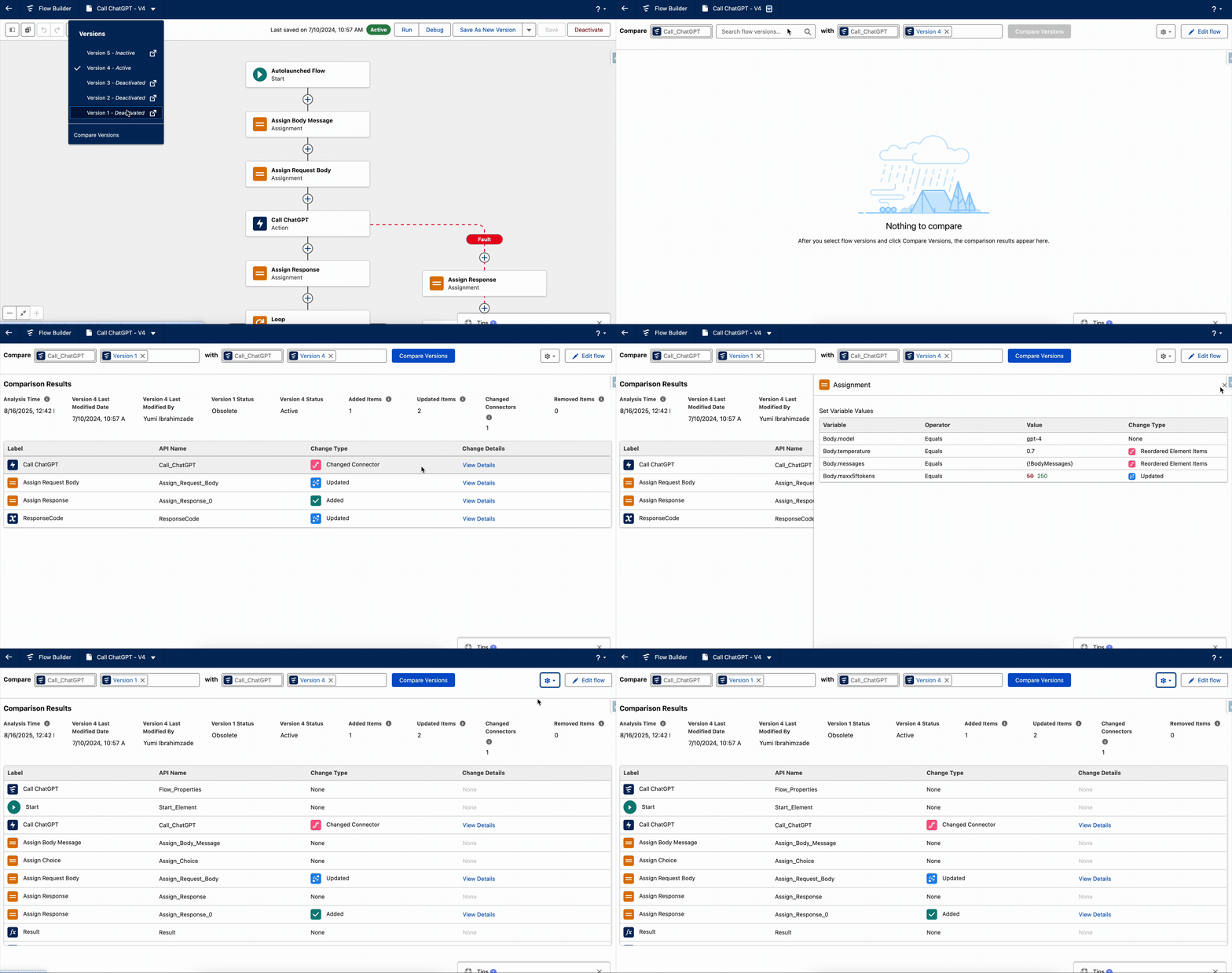
You can also share the comparison results with others. Simply copy the URL, and they can open it directly without any extra steps.
Flow Comparison Tool Limitations
Since this is a new tool introduced in the Winter ’26 release, it comes with a few limitations. Currently, it doesn’t support Screen Flows or the Transform element. However, I’m confident the Flow team will address these in upcoming releases.
The post How to Compare Flow Versions appeared first on Salesforce Time.
August 24, 2025 at 05:41PM
Click here for more details...
=============================
The original post is available in Salesforce Time by Yumi Ibrahimzade
this post has been published as it is through automation. Automation script brings all the top bloggers post under a single umbrella.
The purpose of this blog, Follow the top Salesforce bloggers and collect all blogs in a single place through automation.
============================

Post a Comment